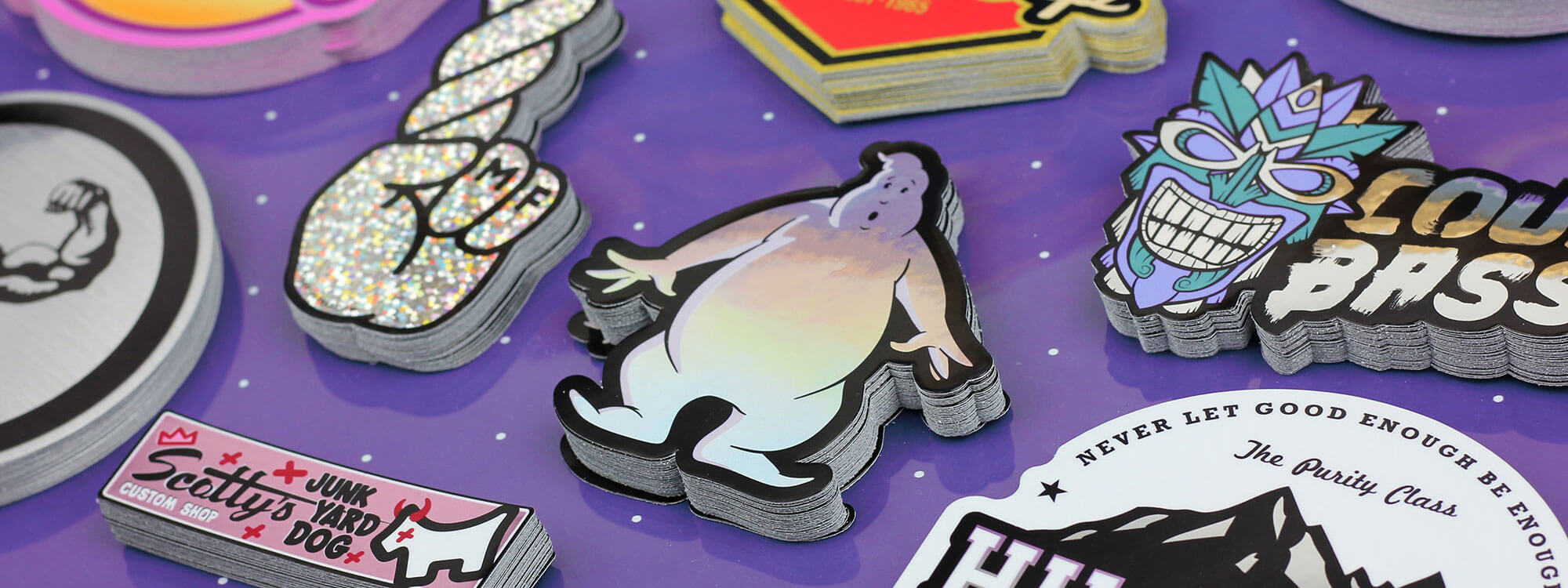
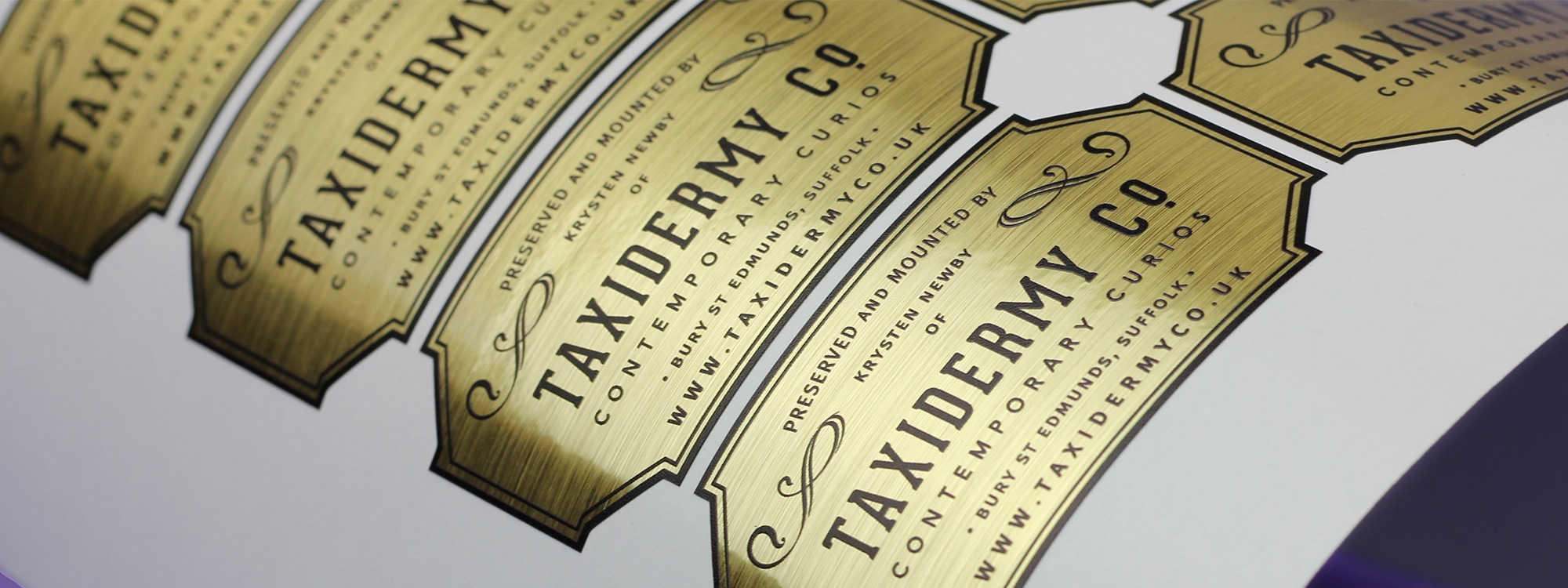
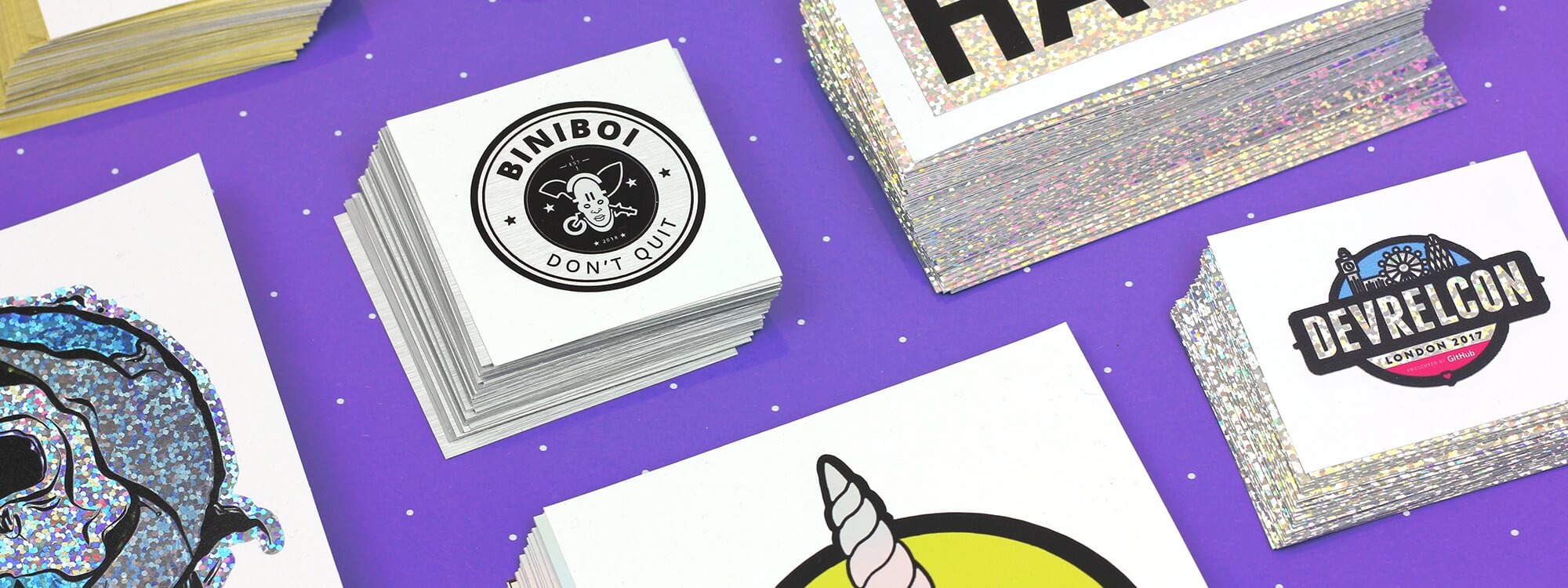
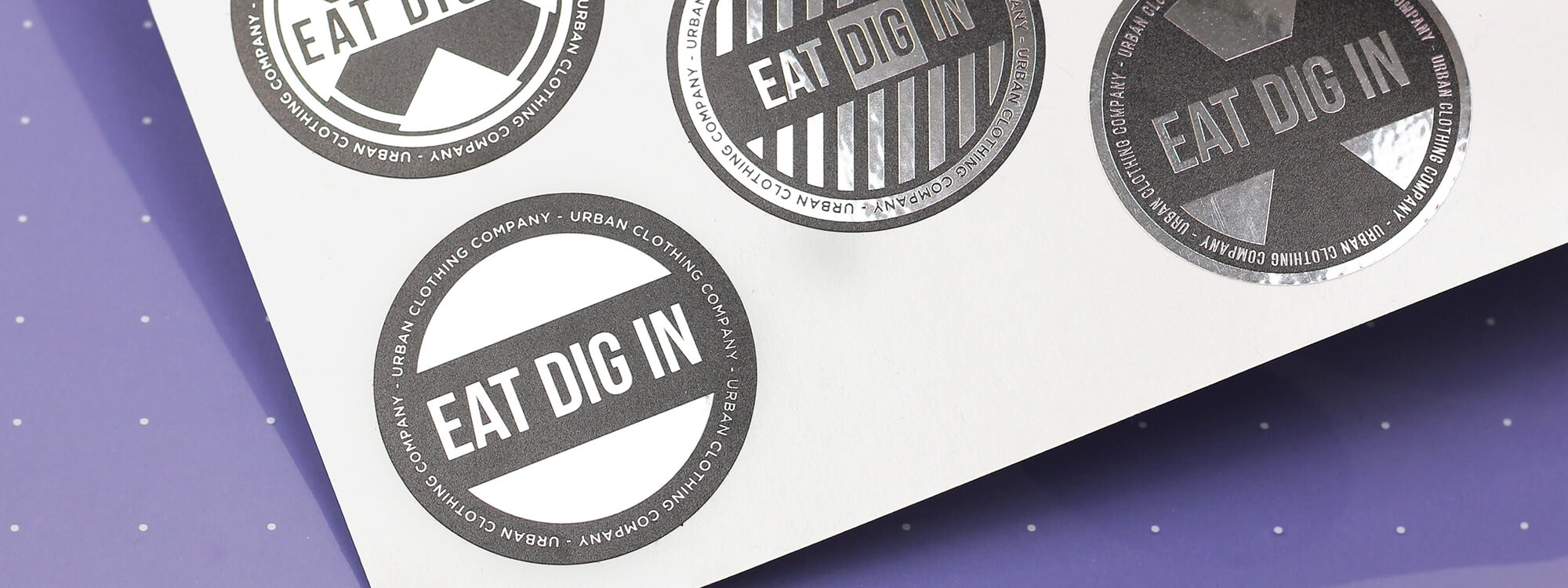
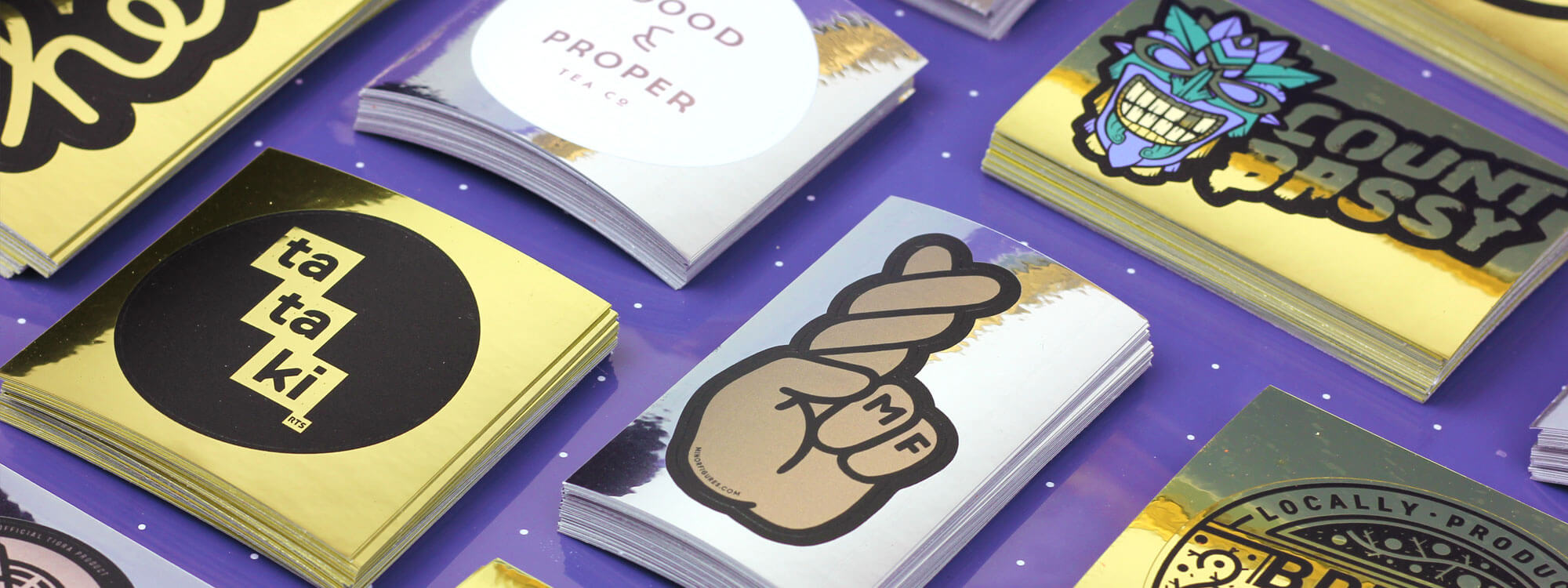
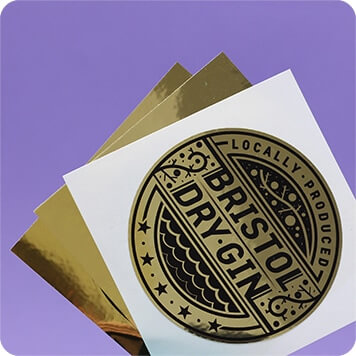
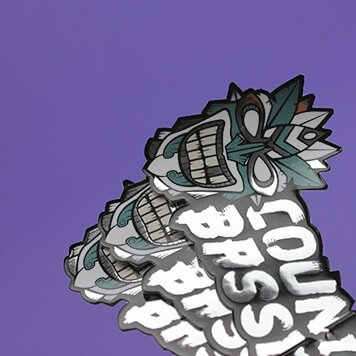
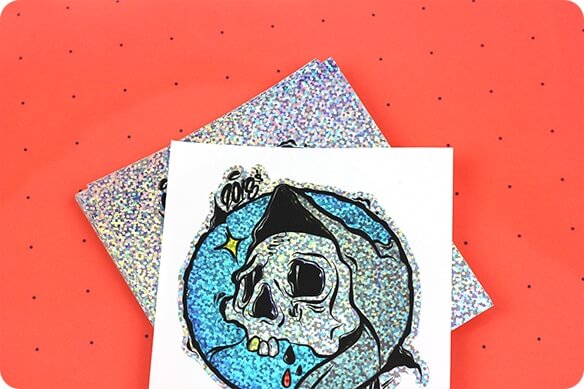
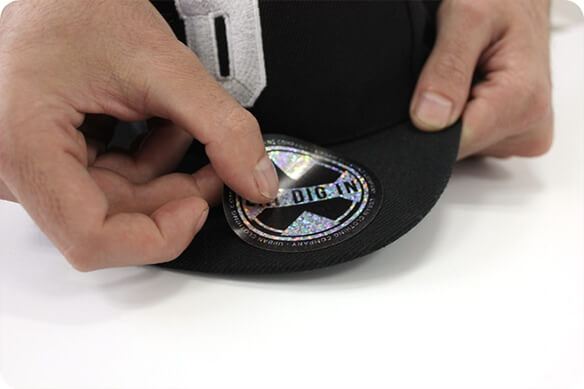


For a truly eyecatching sticker or label our custom metallic stickers are a great option. We offer metallic sticker printing on a range of stunning films.
Our metallic stickers are printed onto metalised polyester films. Thanks to our UV printing method your stickers will be ultra hardwearing, and will not lift at the edges once applied. We print a base layer of white ink under your design to preserve flat colours, although this can be removed to create coloured metallic tints (see below). Our metallic printed stickers are suitable for indoor and short-term outdoor use.
Here’s an overview of the metallic sticker types we offer:
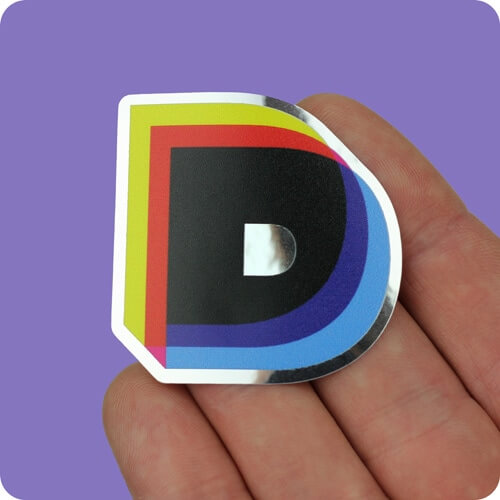
Silver
An ultra-shiny mirror finish chrome film. Works well with colour tints.
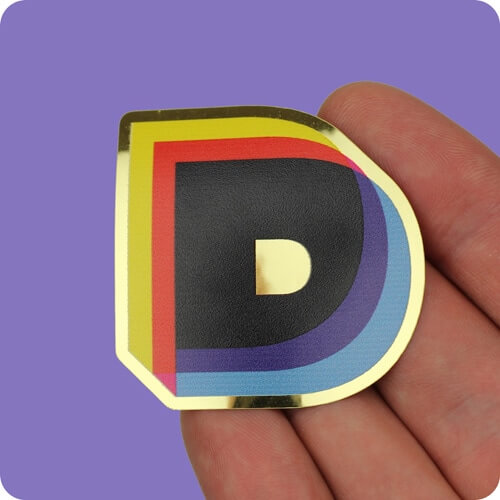
Gold
An ultra-shiny mirror finish gold film.
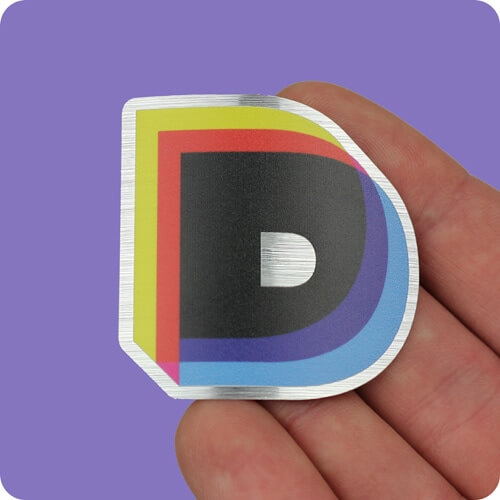
Brushed Aluminium
A brushed aluminium silver film. Works well with colour tints.
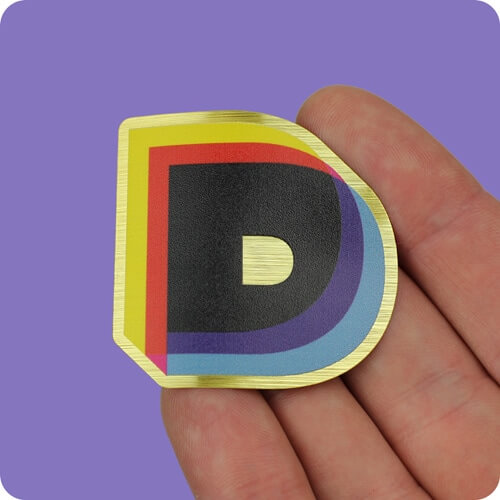
Brushed Gold
A brushed gold film. Great for cosmetics labelling.
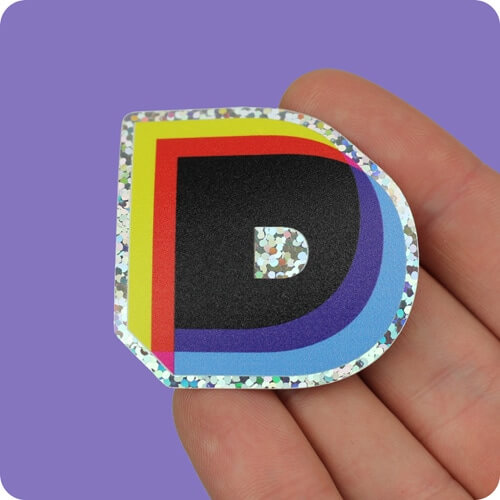
Sparkly
A rainbow glitter film which reflects a full spectrum of colour.
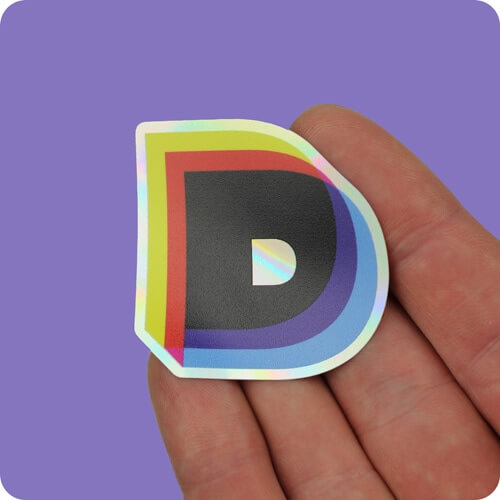
Holographic
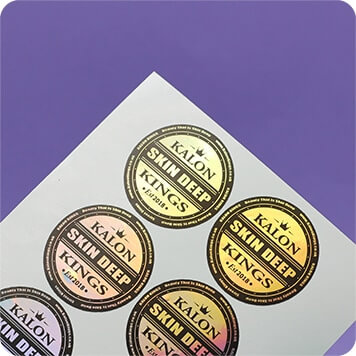
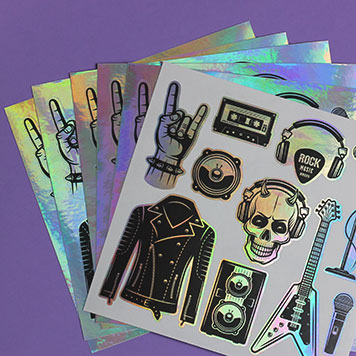
An iridescent colour changing holographic film. Sometimes referred to as petrol stickers.
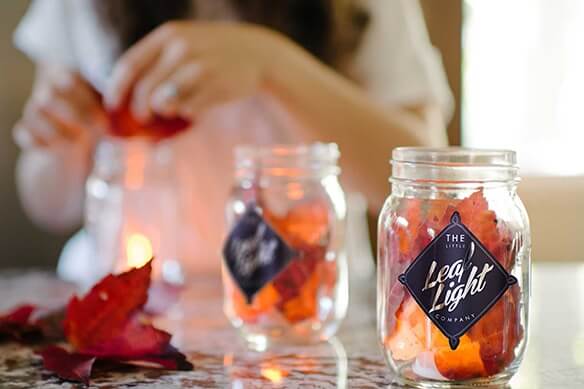
Metallic stickers and labels are great for a wide range of applications. The stability and classy appearance of the film makes them ideal for product labelling, including high-end applications such as cosmetics, scented candle labels and jewellery. They also make for fantastic promotional handouts, laptop stickers, bottle and jar labels and control panel stickers.
Our metallic stickers are available in our full range of finishing options including custom sticker sheets and die cuts. To check out the materials we offer why not order a Sample Pack?
Our metallic stickers are printed onto metalised polyester films. Thanks to our UV printing method your stickers will be ultra hardwearing, and will not lift at the edges once applied. We print a base layer of white ink under your design to preserve flat colours, although this can be removed to create coloured metallic tints (see below). Our metallic printed stickers are suitable for indoor and short-term outdoor use.
Here’s an overview of the metallic sticker types we offer:
Silver
An ultra-shiny mirror finish chrome film. Works well with colour tints.
Gold
An ultra-shiny mirror finish gold film.
Brushed Aluminium
A brushed aluminium silver film. Works well with colour tints.
Brushed Gold
A brushed gold film. Great for cosmetics labelling.
Sparkly
A rainbow glitter film which reflects a full spectrum of colour.
Holographic
An iridescent colour changing holographic film. Sometimes referred to as petrol stickers.
Metallic stickers and labels are great for a wide range of applications. The stability and classy appearance of the film makes them ideal for product labelling, including high-end applications such as cosmetics, scented candle labels and jewellery. They also make for fantastic promotional handouts, laptop stickers, bottle and jar labels and control panel stickers.
Our metallic stickers are available in our full range of finishing options including custom sticker sheets and die cuts. To check out the materials we offer why not order a Sample Pack?